> ## Documentation Index
> Fetch the complete documentation index at: https://javascript.wapikit.com/llms.txt
> Use this file to discover all available pages before exploring further.

# Create a Meta Business App

You need to create a application in your Meta Developer Account in order to get access to WhatsApp Business API Products.

<Note>Create your account on [Meta Development Hub](https://developers.facebook.com), if you do not have one yet.</Note>

<Steps>
  <Step>
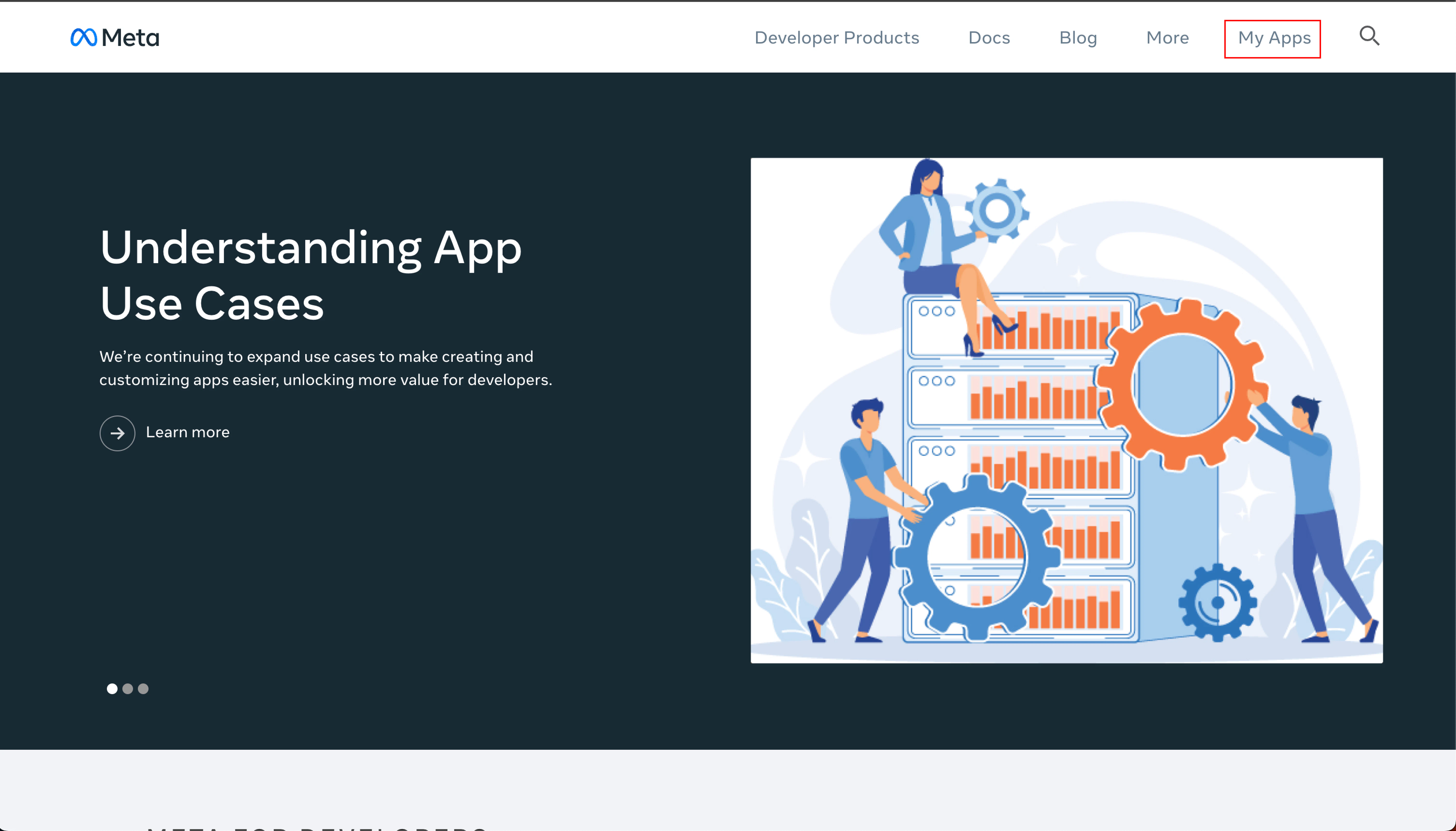
    <Accordion title="Visit Meta Development Dashboard Apps Section">
      <Frame>
        a<img src="https://mintcdn.com/na-730c8179/80ga8p47TsqYrSTi/assets/create-meta-app/1.png?fit=max&auto=format&n=80ga8p47TsqYrSTi&q=85&s=b0add70c309a583f59dafa80abbf44ff" width="6020" height="3436" data-path="assets/create-meta-app/1.png" />
      </Frame>
    </Accordion>
  </Step>

  <Step>
    <Accordion title="Create a New App">
      <Frame>
        <img src="https://mintcdn.com/na-730c8179/80ga8p47TsqYrSTi/assets/create-meta-app/2.png?fit=max&auto=format&n=80ga8p47TsqYrSTi&q=85&s=ce8ae782f29125f41f608d8dbdf479e0" width="6028" height="692" data-path="assets/create-meta-app/2.png" />
      </Frame>
    </Accordion>
  </Step>

  <Step>
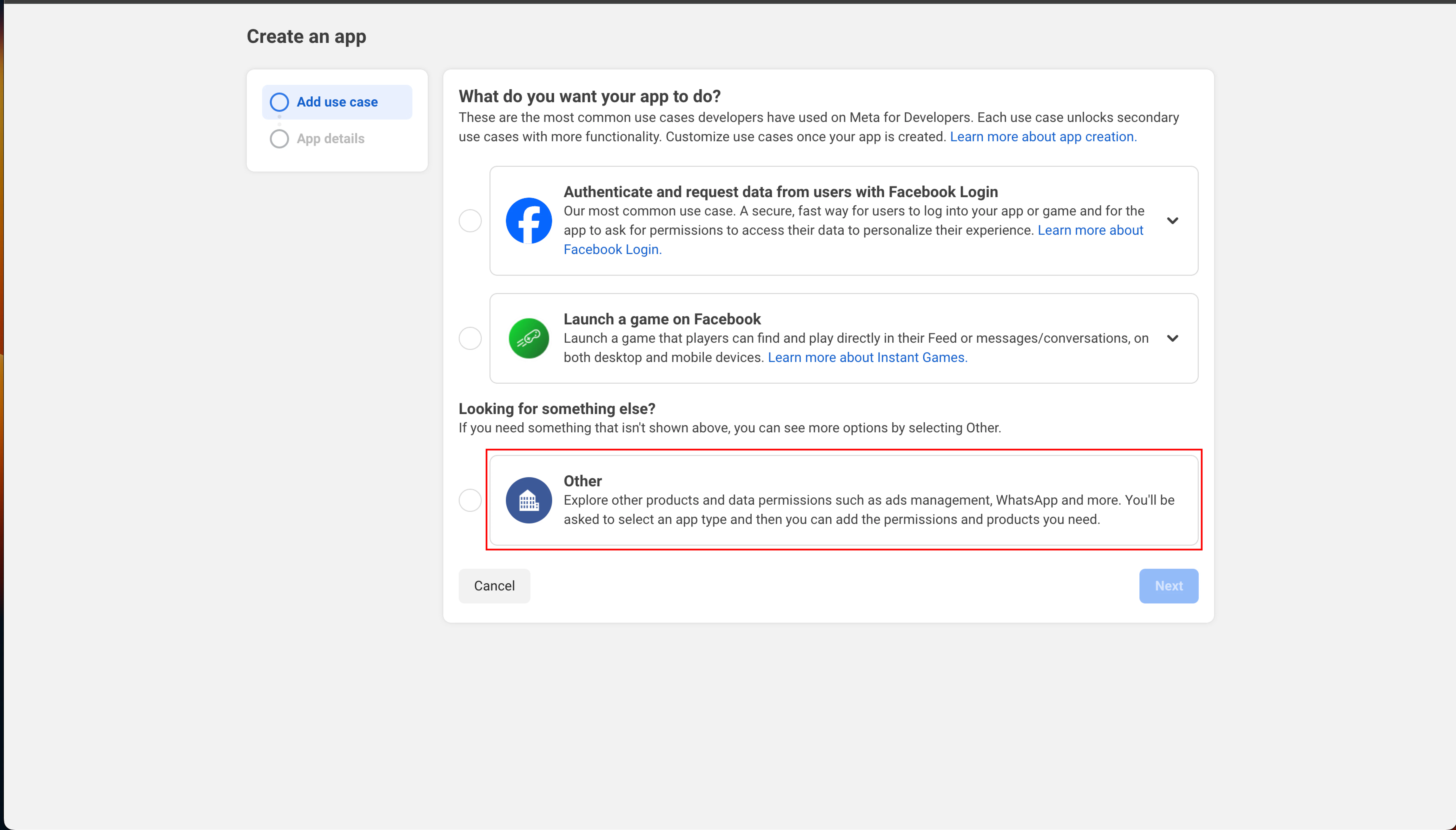
    <Accordion title="For WhatsApp Business App, select others here.">
      <Frame>
        <img src="https://mintcdn.com/na-730c8179/80ga8p47TsqYrSTi/assets/create-meta-app/3.png?fit=max&auto=format&n=80ga8p47TsqYrSTi&q=85&s=de736b62d317c79ebdb4b53ea53058cb" width="6044" height="3444" data-path="assets/create-meta-app/3.png" />
      </Frame>
    </Accordion>
  </Step>

  <Step>
    <Accordion title="Select Business">
      <Frame>
        <img src="https://mintcdn.com/na-730c8179/80ga8p47TsqYrSTi/assets/create-meta-app/4.png?fit=max&auto=format&n=80ga8p47TsqYrSTi&q=85&s=5b629bc69ceea76ef720185da013265d" width="3212" height="1672" data-path="assets/create-meta-app/4.png" />
      </Frame>
    </Accordion>
  </Step>

  <Step>
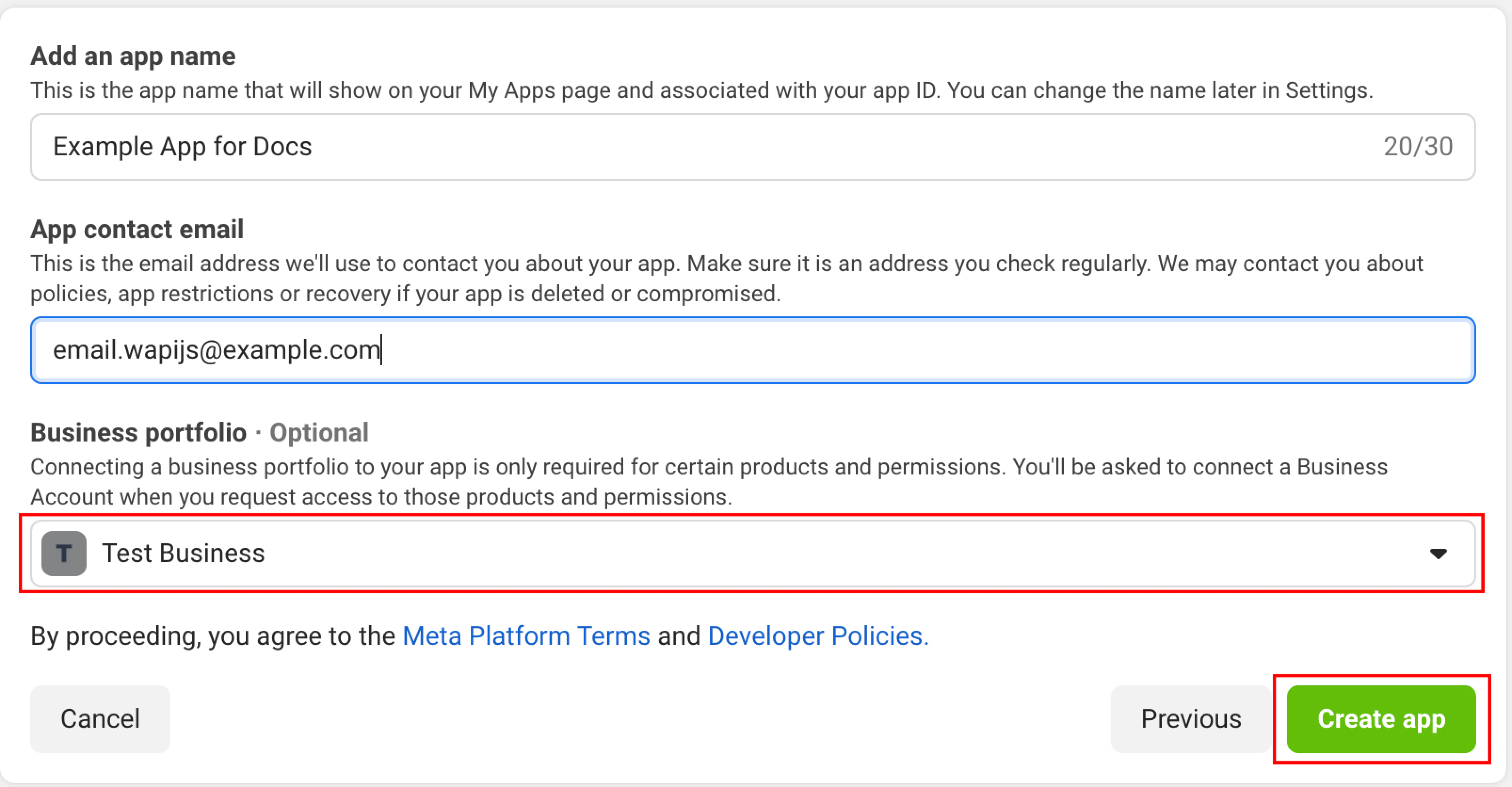
    <Accordion title="Fill App Details">
      <Frame>
        <img src="https://mintcdn.com/na-730c8179/80ga8p47TsqYrSTi/assets/create-meta-app/5.png?fit=max&auto=format&n=80ga8p47TsqYrSTi&q=85&s=97cf468afd77bd11921e078136992907" width="6020" height="3436" data-path="assets/create-meta-app/5.png" />
      </Frame>

      <Note>You can select the Facebook page of your business from the `Business Portfolio` dropdown.</Note>
    </Accordion>
  </Step>

  <Step>
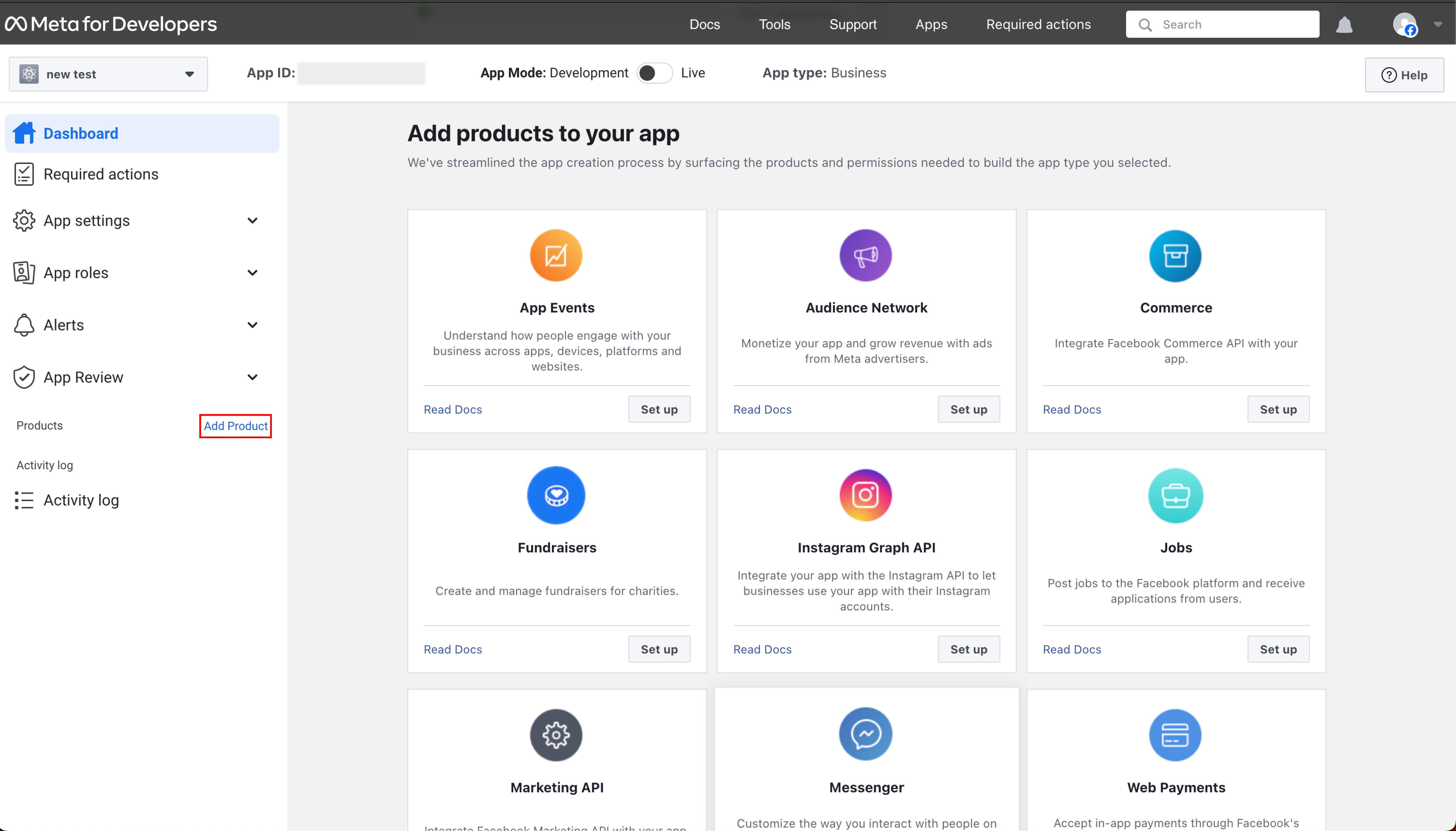
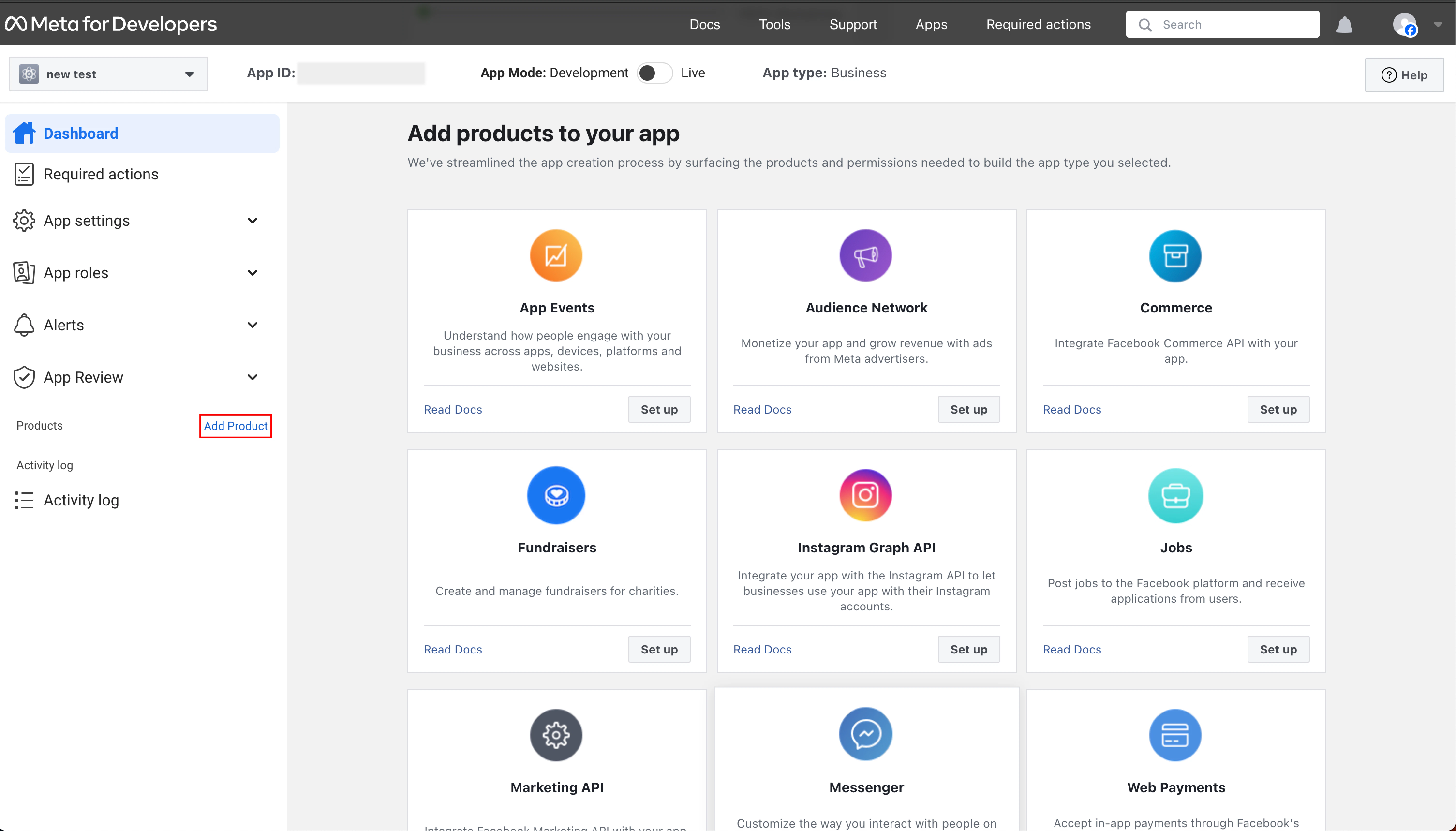
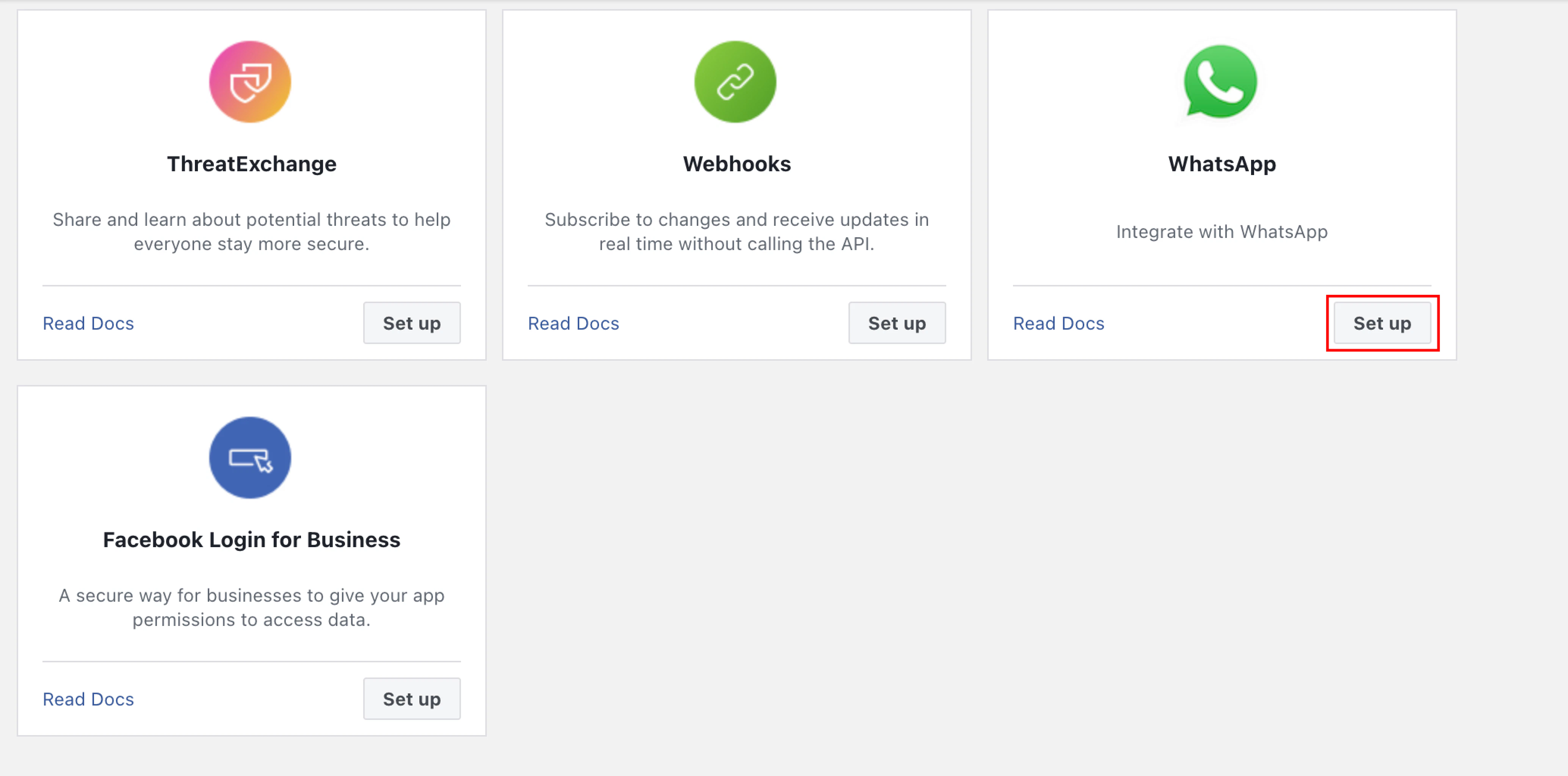
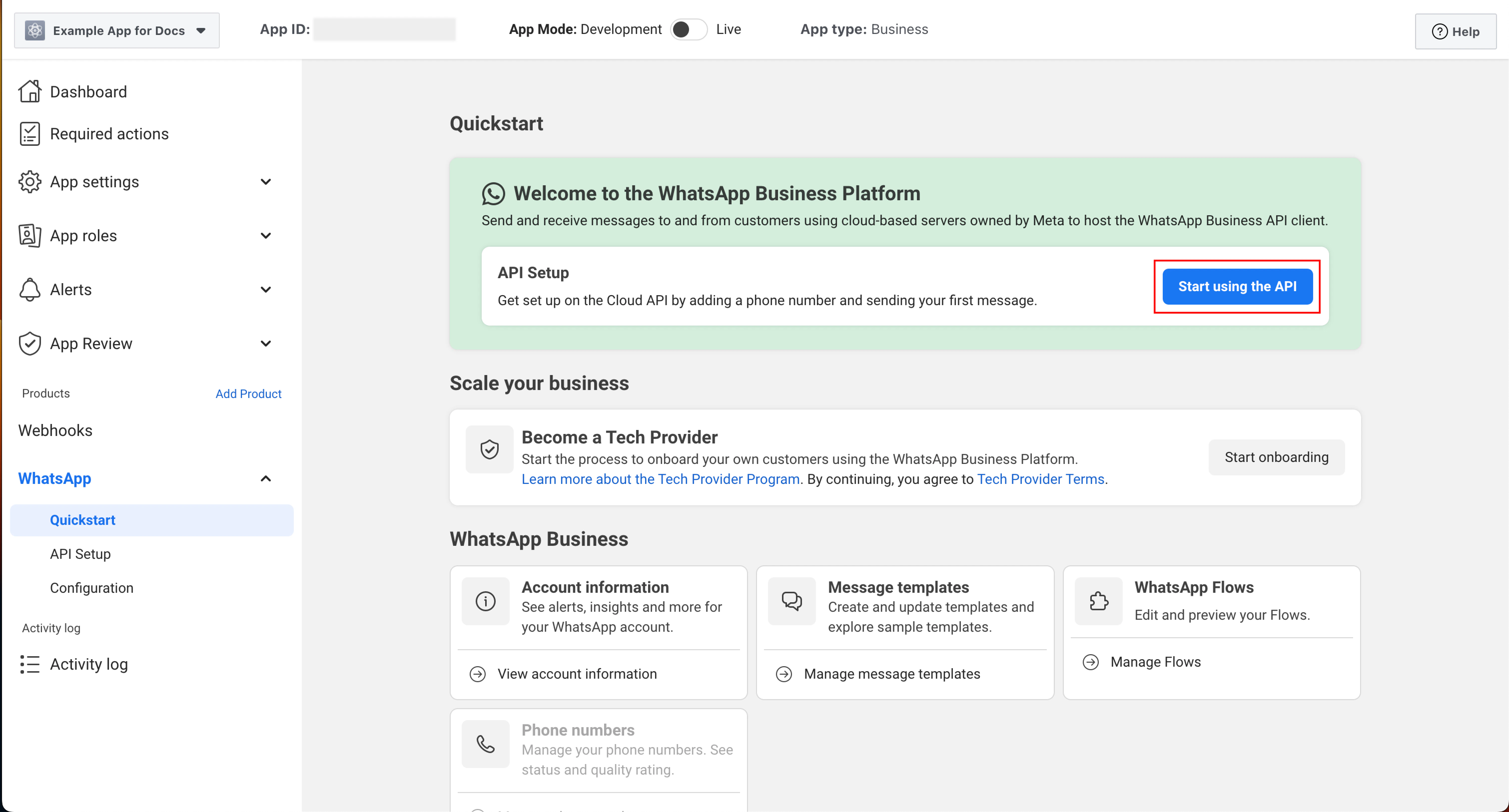
    <Accordion title="Add WhatsApp Product to the Application Created">
      <Frame>
        <img src="https://mintcdn.com/na-730c8179/80ga8p47TsqYrSTi/assets/create-meta-app/6a.png?fit=max&auto=format&n=80ga8p47TsqYrSTi&q=85&s=3bf25981007f9bec60495c981cddf3df" width="6020" height="3436" data-path="assets/create-meta-app/6a.png" />
      </Frame>

      <Frame>
        <img src="https://mintcdn.com/na-730c8179/80ga8p47TsqYrSTi/assets/create-meta-app/6b.png?fit=max&auto=format&n=80ga8p47TsqYrSTi&q=85&s=8d6b2a420864e064545528afa57fd3f5" width="4136" height="2048" data-path="assets/create-meta-app/6b.png" />
      </Frame>
    </Accordion>
  </Step>

  <Step>
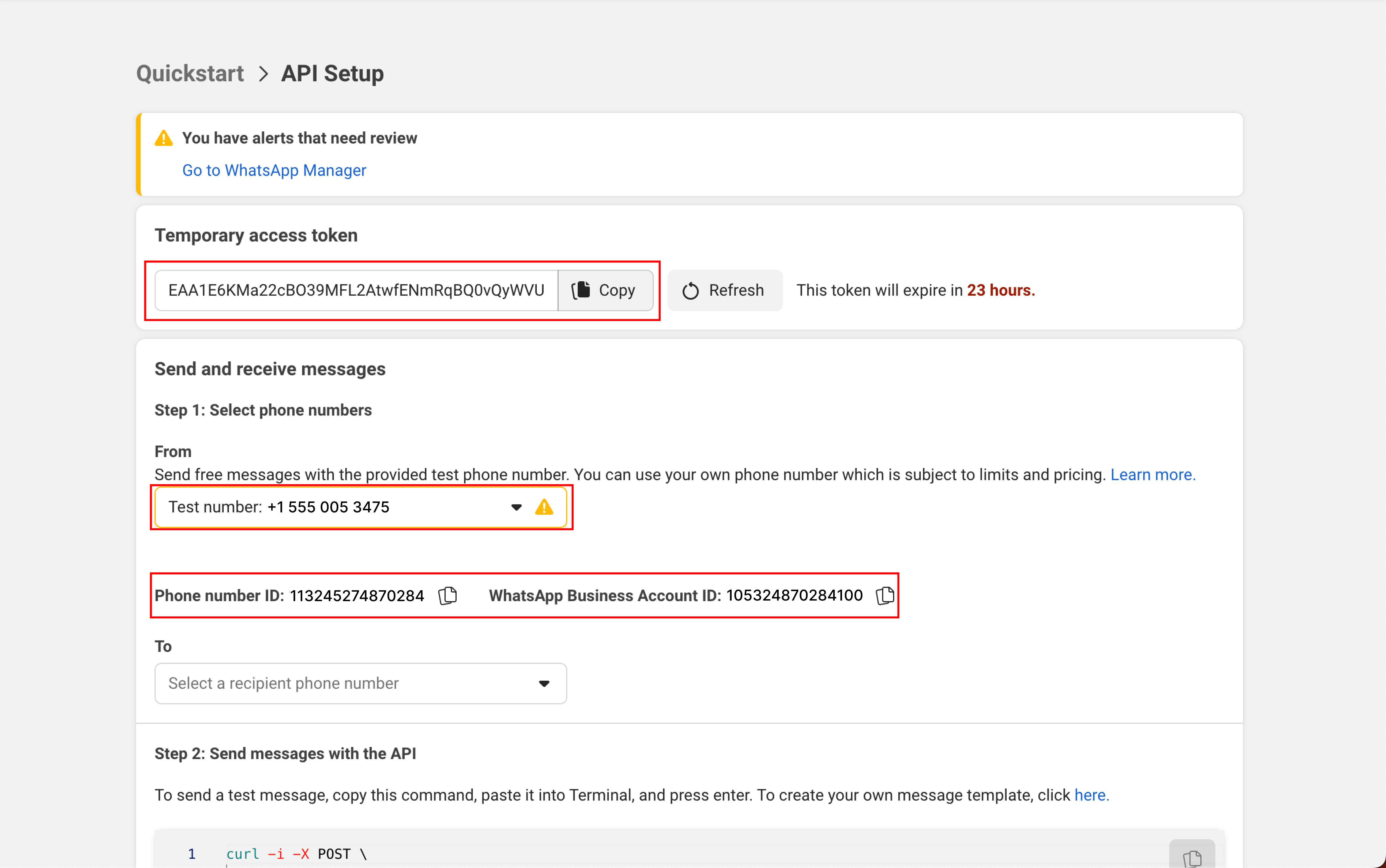
    <Accordion title="Get your Temporary API key, Test Phone Number, Text Phone Number Id and Whatsapp Business Account Id">
      <Frame>
        <img src="https://mintcdn.com/na-730c8179/80ga8p47TsqYrSTi/assets/create-meta-app/7a.png?fit=max&auto=format&n=80ga8p47TsqYrSTi&q=85&s=bec449c9d8baa2faff4511e17303da71" width="6040" height="3252" data-path="assets/create-meta-app/7a.png" />
      </Frame>

      <Frame>
        <img src="https://mintcdn.com/na-730c8179/80ga8p47TsqYrSTi/assets/create-meta-app/7b.png?fit=max&auto=format&n=80ga8p47TsqYrSTi&q=85&s=1741e3400e599089196b4d1714026e1d" width="4808" height="3012" data-path="assets/create-meta-app/7b.png" />
      </Frame>

      <Note>You will be able to get a permanent access token once you get your WhatsApp Business Account verified.</Note>
    </Accordion>
  </Step>
</Steps>